Connecting to Real Hosts (VS Code / Claude Code / Cursor)
Module 1 — Your First Server
You have a working stdio MCP server (factory + serveStdio + Zod tools + proper isError handling). The next step is to hand it to a real host — an application that contains a model — so the model can discover and call your tools on its own.
This article is self-contained. It includes the complete src/index.ts weather server, then the copy-paste host config for VS Code (GitHub Copilot Agent mode), Claude Code, and Cursor.

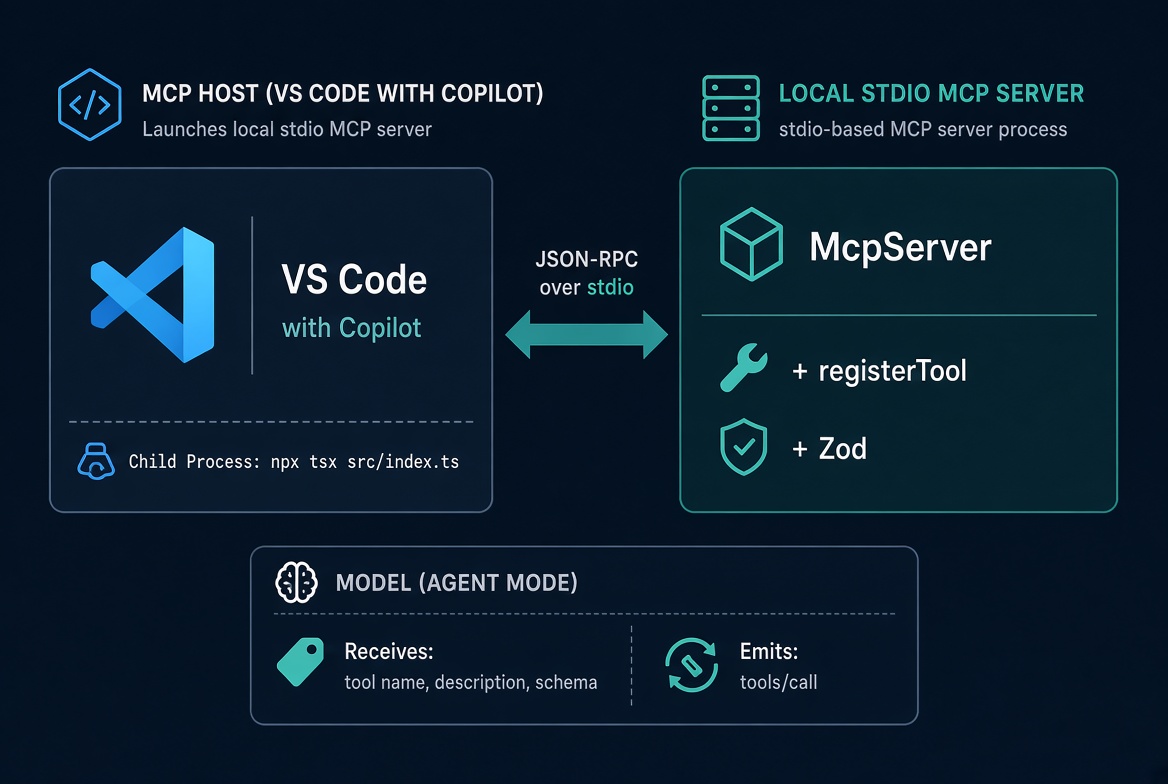
A host launches npx tsx src/index.ts as a child process. serveStdio speaks JSON-RPC over stdin/stdout and pins the McpServer from your factory for that connection.
Prerequisites
Node.js 20 or later, with npx on the PATH that VS Code uses.
VS Code 1.99 or later with the GitHub Copilot extension installed and signed in (Copilot Free is sufficient).
The project folder opened as a trusted workspace.
Critical rule: stdout is the protocol channel. Any console.log corrupts the JSON-RPC stream and the host drops the connection. Always log with console.error.
Complete server: src/index.ts
Create the project and install the SDK. type=module is required — the v2 packages ship ESM only. tsx runs TypeScript directly, so there is no build step.
mkdir weather && cd weather
npm init -y
npm pkg set type=module
npm install @modelcontextprotocol/server zod tsx
npm i --save-dev @types/node
mkdir -p src
package.json only needs the module type and a start script:
{
  "name": "weather",
  "type": "module",
  "scripts": {
    "start": "tsx src/index.ts"
  },
  "dependencies": {
    "@modelcontextprotocol/server": "^2",
    "tsx": "^4",
    "zod": "^4"
  }
}
Save this as src/index.ts. It is the whole server: one factory, one tool, and serveStdio.
import { McpServer } from '@modelcontextprotocol/server';
import { serveStdio } from '@modelcontextprotocol/server/stdio';
import * as z from 'zod/v4';

const NWS_API = 'https://api.weather.gov';

interface AlertsResponse {
  features: { properties: { event?: string; headline?: string } }[];
}

function createServer(): McpServer {
  const server = new McpServer({ name: 'weather', version: '1.0.0' });

  server.registerTool(
    'get-alerts',
    {
      description: 'Get the active weather alerts for a US state',
      inputSchema: z.object({
        state: z
          .string()
          .length(2)
          .describe('Two-letter US state code, e.g. CA')
      })
    },
    async ({ state }) => {
      const code = state.toUpperCase();
      const url = `${NWS_API}/alerts/active?area=${code}`;
      const res = await fetch(url, {
        headers: {
          Accept: 'application/geo+json',
          'User-Agent': 'mcp-weather-tutorial/1.0'
        }
      });

      if (!res.ok) {
        return {
          content: [{ type: 'text', text: `NWS API error: HTTP ${res.status}` }],
          isError: true
        };
      }

      const { features } = (await res.json()) as AlertsResponse;
      if (features.length === 0) {
        return { content: [{ type: 'text', text: `No active alerts for ${code}.` }] };
      }

      const lines = features.map(
        (f) => f.properties.headline ?? f.properties.event ?? 'Unnamed alert'
      );
      return { content: [{ type: 'text', text: lines.join('\n') }] };
    }
  );

  return server;
}

void serveStdio(createServer);
console.error('weather MCP server running on stdio');
What this file does:
createServer builds a fresh McpServer and registers get-alerts. serveStdio calls the factory once per connection and pins that instance.
The Zod inputSchema is the only schema you write. The SDK turns it into JSON Schema for the host, validates arguments before the handler runs, and types { state }.
A two-letter code longer or shorter than 2 characters never reaches the handler.
isError: true is a failed tool result the model can read. It is not a thrown exception.
The National Weather Service requires a User-Agent. Without it the request is often rejected.
The last two lines are the entry point every host below launches. The banner goes to stderr so stdout stays JSON-RPC.
Confirm it before you touch a host:
npx tsx src/index.tsExpected (stderr only), then the process waits:
weather MCP server running on stdioStop it with Ctrl+C. If that line does not appear, fix src/index.ts here — a host cannot attach to a process that crashes.
Complete VS Code Implementation
1. Create the configuration file
In the project root, create .vscode.vscode/mcp.json:
{
  "servers": {
    "weather": {
      "type": "stdio",
      "command": "npx",
      "args": ["tsx", "src/index.ts"]
    }
  }
}
Key points:
Top-level key is "servers" (not "mcpServers").
"type": "stdio" is required for local process servers.
command + args is exactly the launch command you already run by hand.
VS Code runs the command from the workspace root (same as your terminal).
VS Code provides IntelliSense for this file. After saving, it prompts you to trust the server — confirm.
2. Verify the server starts
Open the Command Palette (Ctrl+Shift+P / Cmd+Shift+P) and run MCP: List Servers.
weather should appear with a running (or startable) status.
If it fails, select the server → Show Output to see the stderr from your process.
You can also start/stop/restart from the same list or from the Agent Customizations editor (Chat: Open Customizations → MCP Servers).
3. Call the tool from Copilot Chat
Open Copilot Chat (Ctrl+Alt+I / Ctrl+Cmd+I).
Switch the mode selector at the top of the panel to Agent (the only mode that invokes MCP tools).
Ask a natural-language question that your tool can answer, for example:
What are the active weather alerts in Texas?Copilot shows the proposed tool call (get-alerts with state: "TX"). Approve it. The handler runs and the model writes the answer from the content block you returned.
Nothing in the prompt names the tool. The model chooses it from the name, description, and JSON Schema derived from your Zod inputSchema.
Click the Tools button in the chat panel to see the exact list the model is choosing from.
Optional: inputs and environment variables
For secrets, use VS Code’s input variables (supported in .vscode/mcp.json):
{
  "inputs": [
    {
      "type": "promptString",
      "id": "api-key",
      "description": "API key for the weather service",
      "password": true
    }
  ],
  "servers": {
    "weather": {
      "type": "stdio",
      "command": "npx",
      "args": ["tsx", "src/index.ts"],
      "env": {
        "WEATHER_API_KEY": "${input:api-key}"
      }
    }
  }
}
You can also use ${env:NAME}, ${workspaceFolder}, or an envFile.
Trace the Round Trip
VS Code sends your question + every tool’s name/description/input schema to the model.
The model decides get-alerts answers the question and emits a call.
The MCP client inside VS Code sends a tools/call request over stdio.
The SDK validates arguments against your Zod schema and runs the handler.
The handler’s content (and optional isError) returns over stdout.
The model reads the text and writes the final answer.
Claude Code and Cursor (same launch command)
Every host launches the identical stdio command. Only the config file and wrapper key differ.
Claude Code
From the project root:
claude mcp add weather -- npx tsx src/index.tsInside a session in that directory, run /mcp. The server appears with get-alerts listed. The same natural-language prompt drives the tool call.
Cursor
Create .cursor/mcp.json:
{
  "mcpServers": {
    "weather": {
      "command": "npx",
      "args": ["tsx", "src/index.ts"]
    }
  }
}
The server shows up under Cursor’s MCP settings. Agent chat calls tools the same way.
Host | Config location | Top-level key |
|---|---|---|
VS Code |
|
|
Claude Code |
|
|
Cursor |
|
|
VS Code also supports a portable project-root .mcp.json (uses mcpServers) and user-level configs. Prefer .vscode/mcp.json when you need input variables, envFile, or sandboxing.
Troubleshooting
Run the launch command by hand first:
npx tsx src/index.tsExpected output (stderr only):
weather MCP server running on stdioThen it waits. Anything else is the bug.
Common failures:
Process exits or crashes → fix the command/args until the banner appears, then re-register.
Extra output on stdout → search for console.log and change to console.error.
Server runs but tools never appear or are never called:
Confirm chat is in Agent mode.
Run MCP: List Servers and check status / Show Output.
Run MCP: Reset Cached Tools.
Restart the server or reload the window.
Workspace not trusted → Restricted Mode blocks workspace servers.
Wrong PATH → the Node/npx that VS Code sees differs from your terminal. Use absolute paths or ensure the environment is correct.
After any config change, restart the server from the MCP list.
Recap
src/index.ts is the whole server: createServer registers get-alerts, and serveStdio(createServer) is the process a host launches.
A host launches that process with command + args and talks JSON-RPC over stdin/stdout.
One .vscode/mcp.json entry (type: "stdio", command, args) registers the server in VS Code.
In Agent mode the model picks the tool from its name, description, and schema — you never name it in the prompt.
Claude Code and Cursor use the identical launch command; only the config file and key name change.
stdout belongs exclusively to the protocol. Log to stderr.
Next: deepen tools (structured output, annotations) or serve the same factory over HTTP so many clients can share one endpoint.
Get new posts by Nelson Lin
Subscribe to receive email notifications when a new article is published.